LoRaWAN to BACnet Integration via Milesight Gateway: 10 FAQs

What is LoRaWAN to BACnet Integration?
LoRaWAN to BACnet integration is a key requirement in modern smart building projects.
It allows smart building teams to connect wireless IoT sensors to a Building Management System. This guide shows how to configure a Milesight UG65 or UG56 gateway to expose sensor data as BACnet/IP objects.
Milesight gateway is able to decode the data of LoRaWAN sensors and map the sensor data into BACnet objects used by BMS system or BACnet devices, which can quickly and easily integrate LoRaWAN devices to Building Management System.
Requirement
- Milesight Gateway: check that the firmware version supports Bacnet
- Any LoRaWAN sensor (this example use AM103 and V135)
- BACnet Client tool: take Yabe as example
Configuration
- Use browser to login to the admin page of the Lorawan gateway
- Go to Network Server > Payload Codec to check if there is decoder of your LoRaWAN node, if not please add and custom the decoder referring to article How to Use Payload Codec on Milesight Gateway.
- Connect LoRaWAN node to Milesight gateway referring to article How to Connect LoRaWAN Nodes to Milesight Gateway. Note that ensure the correct payload codec is selected when adding this device.
- Go to Protocol Integration > BACnet Server > Server to enable BACnet server and configure the settings. Note that the Device ID should be changed to an unique value to avoid conflict with other BACnet server devices, or the BACnet client may not find this device.
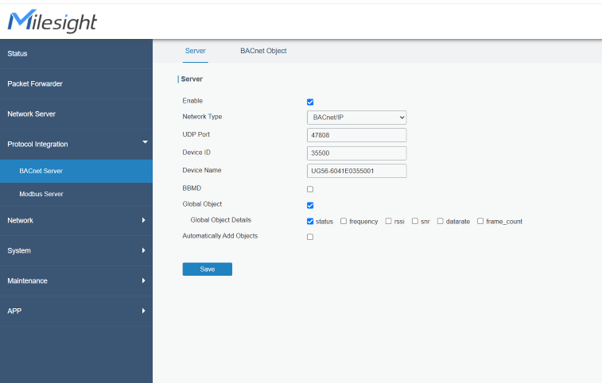
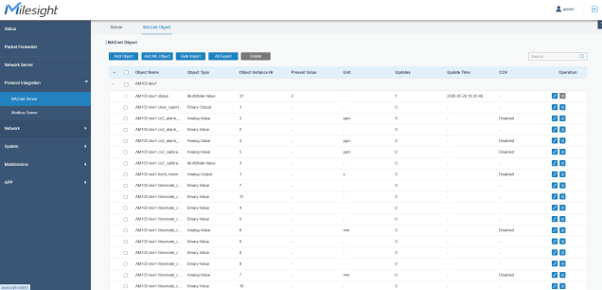
- Go to Protocol Integration > BACnet Server > BACnet Objectpage, click Add to add an object.
- Device Name: select the device added on Network Server > Device page
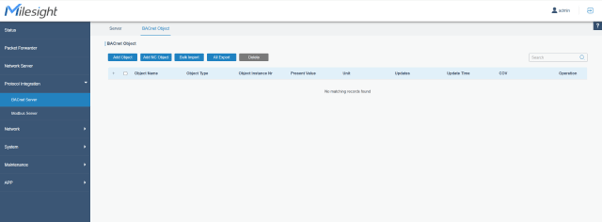
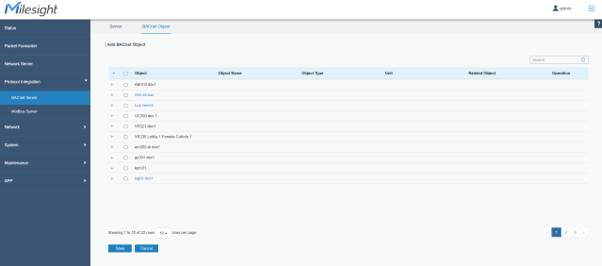
Those objects in black means these devices are ONLINE. If the objects are in blue, means they’re OFFLINE.
These devices were selected:
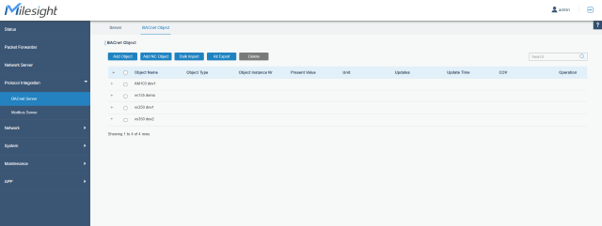
Example 1: temperature data
- COV: when the change of analog type object value exceeds the COV Increment, the gateway will send notification to BACnet client actively. This should ensure the BACnet client supports COV feature.
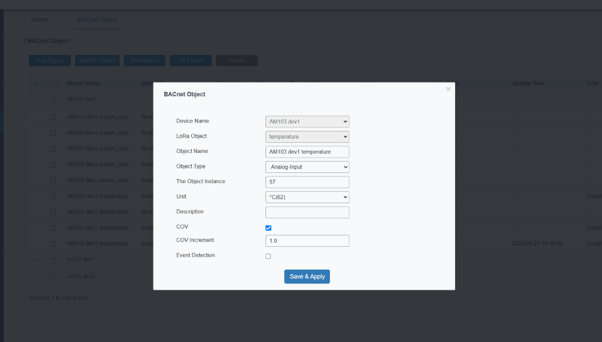
- After adding, you can check if object values are updated regularly.
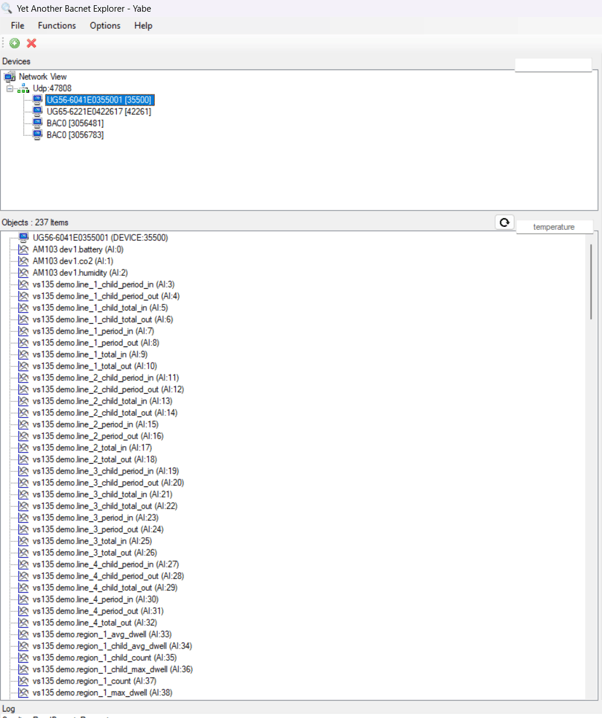
- Open Yabe BACnet client tool, click Add deviceto scan the devices, then you can find the BACnet server device according to the Device ID and check the object list.
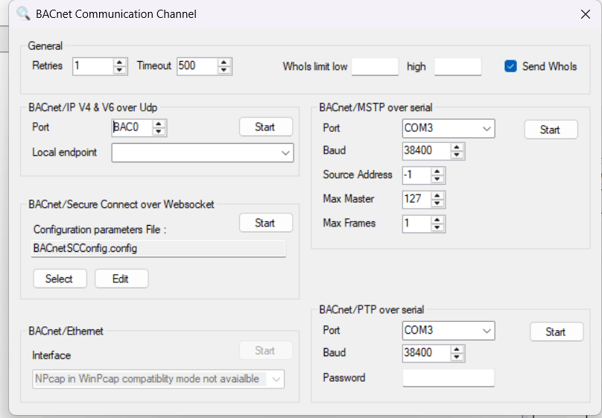
[For local endpoint, it is referring to the PC or laptop you’re running Yabe. You can leave it empty]
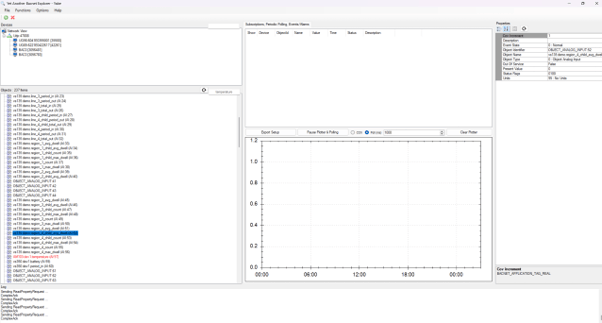
- Click the object to check all the properties of this object.
The LoRaWAN BACnet integration is done.
Conclusion
LoRaWAN to BACnet integration via Milesight gateway is a practical and low-friction way to bring wireless IoT sensor data into any BACnet-compatible BMS. With the UG65 or UG56 acting as the protocol bridge, facilities teams can avoid costly rewiring while gaining real-time visibility over environmental, occupancy, and energy data.
If you are deploying IoT sensors for smart building applications in Singapore or the region, contact NexAscent to discuss your project requirements.
FAQ
Here are all 10 FAQs:
- What BACnet protocol does the UG65 support?
BACnet/IP (UDP port 47808) over IPv4. It acts as a BACnet/IP server — your BMS or client application polls it. BACnet MS/TP (serial) is not supported on the UG65.
- How many BACnet objects can the UG65 support?
Up to 10,000 BACnet objects per gateway. Practically, Milesight recommends a maximum of 300 LoRaWAN devices at a 5-minute reporting interval (approximately 1 packet/second throughput ceiling). Shorter reporting intervals reduce this ceiling proportionally.
- Do all LoRaWAN sensors share the same BACnet Device ID?
Yes. The UG65 is a single BACnet device with one Device Instance ID. All connected LoRaWAN sensors are exposed as individual BACnet objects (Analog Inputs, Binary Inputs, etc.) within that one device. Multiple gateways each get their own unique Device ID.
- Will BACnet object instance IDs change if I remove and re-add sensors?
Yes — this is a critical operational risk. The UG65 assigns BACnet object instance numbers sequentially based on the order devices are added. Removing and re-adding devices will reassign instance IDs, breaking any hardcoded mappings in your BMS or polling scripts. Always re-verify object IDs in YABE or equivalent after any device list change.
- How do I find the correct BACnet object IDs for my sensors?
Use a BACnet discovery tool such as YABE (Yet Another BACnet Explorer) — free, Windows. Connect to your UG65 IP on port 47808, perform a Who-Is scan, and browse the object list. Each sensor channel appears as a named Analog Input (e.g. AM103 dev1.temperature (AI:57)). Note the instance number for each channel you need.
- Why is YABE or my script receiving no data despite the UG65 being reachable?
The most common cause on Windows is wrong network interface binding — especially if NordVPN, OpenVPN, Hyper-V, or WSL adapters are present. BACnet/IP uses UDP broadcast for Who-Is/I-Am discovery, and responses from the UG65 return to the wrong interface. Fix: explicitly bind your client to the LAN IP on the same subnet as the UG65 (e.g. 192.168.0.85).
- What BACnet object types does the UG65 expose?
Primarily:
- Analog Input (AI) — sensor readings (temperature, CO2, people count, etc.)
- Analog Output (AO) — downlink control parameters (e.g. fetch history timestamps)
- Analog Value (AV) — device configuration settings (report interval, alarm thresholds, calibration values)
Binary Input/Output objects may appear depending on sensor type (e.g. door contacts, panic buttons).
- How do I set the BACnet Device Instance ID on the UG65?
In the UG65 web UI: Network Server → BACnet Server → Device Instance. Set a unique integer per gateway across your entire BACnet network — no two devices on the same network should share a Device ID. Convention is to use a number derived from the gateway MAC or a sequential site-based scheme (e.g. Floor 1 = 35500, Floor 2 = 35501).
- Should I use COV subscriptions or periodic polling — and how do I configure COV on the UG65?
Both are valid but suit different scenarios:
| Polling | COV (Change of Value) | |
| How it works | Client requests value on a fixed schedule | UG65 notifies client only when value changes beyond a set increment |
| Network traffic | Constant regardless of activity | Low — only sends on change |
| Latency | Up to one full poll interval | Near real-time |
| Best for | Simple setups, small sensor counts | High sensor counts, event-driven data (people counters, alarms) |
| Risk | Wastes bandwidth if values rarely change | Subscription can expire — client must renew periodically |
When to use polling: AM103 environmental data (temperature, CO2, humidity) changes slowly and predictably — a 5–10 minute poll interval is sufficient and simple to implement.
When to use COV: VS135 people counters and VS350 door counters — values only change on a crossing event. COV eliminates redundant reads and gives you faster response when someone enters or exits.
Configuring COV on the UG65: In the UG65 web UI, set the COV Increment per BACnet object — this is the minimum change in value that triggers a notification. For example, set 1.0 on a people counter so every single count triggers an update. In YABE you can verify the COV Increment property on any object in the Properties panel. Subscription lifetime: BACnet COV subscriptions have a lifetime (in seconds) set by the client at subscription time. Your client must renew before expiry or the UG65 stops sending notifications. If building a custom integration, set renewal at roughly 80% of the subscription lifetime.
- Can the UG65 run BACnet and MQTT simultaneously?
Yes. The UG65 supports concurrent operation of both BACnet/IP and MQTT. This is particularly useful during a phased integration — you can run your existing MQTT pipeline to Node-RED/TimescaleDB while simultaneously exposing the same sensor data over BACnet to a BMS. Both protocols read from the same underlying LoRaWAN decoded payload, so there is no data duplication or conflict. Configure each independently under the UG65 Network Server settings.
- How to enable COV in UG56/UG65?
COV on the UG65 is not a single on/off switch — it is enabled per BACnet object by setting the COV Increment value.
Steps in UG65 Admin UI
- Go to: Network Server → BACnet Server → Object List
- Click on the object you want to enable COV for (e.g. AM103 dev1.temperature)
- Find the COV Increment field
- Set it to a non-zero value
- This defines the minimum change in value that triggers a notification
- Save
What COV Increment Value to Set
| Sensor / Object | Recommended COV Increment |
| Temperature (°C) | 0.5 — triggers on 0.5°C change |
| Humidity (%RH) | 1.0 |
| CO2 (ppm) | 10.0 |
| People counter (in/out) | 1.0 — triggers on every single count |
| Battery (%) | 5.0 |
Setting 0 disables COV for that object — the UG65 will not send notifications regardless of client subscription.
What Happens After You Set It
Your BACnet client (YABE or Python script) still needs to subscribe to COV on that object. The UG65 only pushes notifications to clients that have actively subscribed — it does not broadcast to everyone.
In YABE:
- Select the object
- Click COV radio button at the bottom (instead of Poll)
- Click Subscribe
YABE will then receive a push notification from the UG65 every time that object’s value changes by the defined increment.
Verify It Is Working
In YABE, after subscribing, check the Subscriptions, Periodic Polling, Events/Alarms panel at the top right — your subscribed object should appear there. When the sensor next reports, you will see the value update in that panel without having manually polled.
- How to Get Live Data in YABE
The correct methods are:
Option 1 — COV Subscribe (live, push-based)
- Right-click on any object in the device tree
- Select Subscribe
- YABE establishes a COV subscription — the value auto-updates whenever the UG65 pushes a change notification
Option 2 — Manual Read (one-time)
- Click the object in the device tree
- The Properties panel on the right shows current values
- Click the refresh/read button in the Properties panel to manually fetch the latest value
Practical Recommendation for Your Setup
- Use right-click → Subscribe on your key objects (AM103 temperature, VS135 line totals) for live monitoring in YABE
- Ensure COV Increment is set to non-zero on those objects in the UG65 admin — otherwise the UG65 will not send notifications even with an active subscription